
Setting Up Your Profile
Your profile in Spok Mobile manages the first name, last name, password, and picture that are associated with your Spok Mobile account. By accessing the Profile screen in the application, you can change this information.
Changing Your Name
The first and last names that are associated with your Spok Mobile profile can be updated. To change the name that is set up in your Spok Mobile application, perform the following steps:
- In the Spok Mobile application, tap the drawer button. The drawer displays.
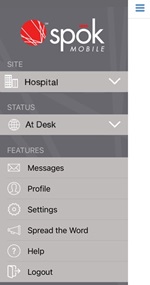
- Tap the Profile option from the drawer. The Profile screen displays.

- Tap Edit. The fields become available for editing.
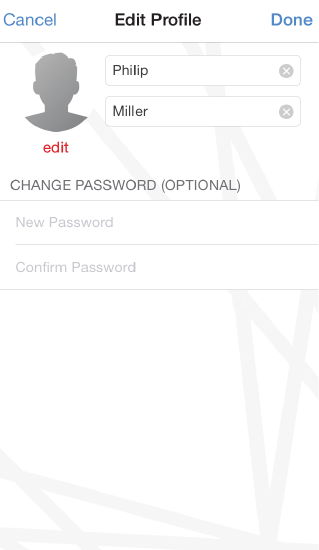
- Make the desired changes to the first and/or last name.
When a device is registered to a Smart Suite system that supports the use of status and location updates in the Spok Mobile client, you cannot change your last name in the Profile screen if your device uses the “FUNCTION” user type in Smart Suite.
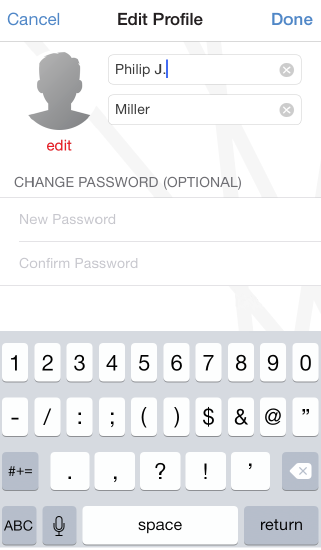
- After the desired changes are made, tap Done . The changes are saved.
Changing Your Profile Picture
The existing profile picture that is associated with your Spok Mobile account can be changed. To change your profile picture, perform the following steps:
- In the Spok Mobile application, tap the drawer button. The drawer displays.
- In the drawer, tap the Profile option. The Profile screen displays.

- Tap Edit. The fields become available for editing.
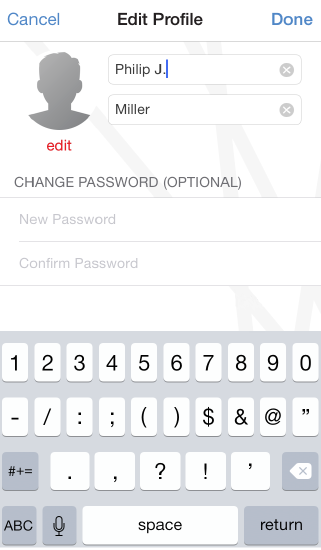
- Under the profile picture, tap the Edit link. Options display.
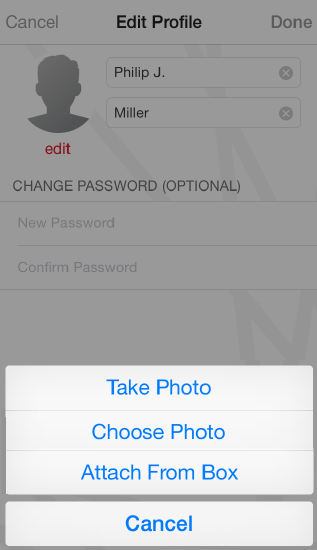
- Choose one of the following options:
- Take Photo: Choose the Take Photo option if you would like to use your device’s camera to capture a new photograph to use as your profile picture.
- Choose Photo: Choose the Choose Photo option if you would like to choose from the existing photographs that are currently being stored in your device’s photo gallery to use as your profile picture.
- Take or choose the photo that you would like to use for your Spok Mobile profile picture. The chosen photo displays in the Edit Profile screen.
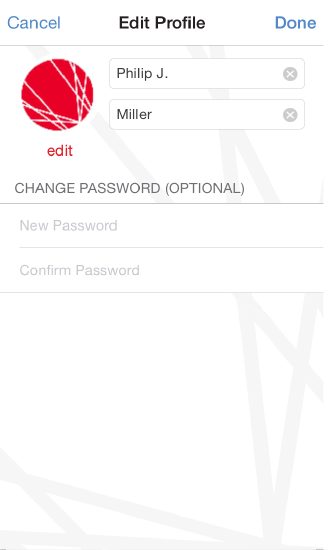
- After the desired changes are made, tap Done . The changes are saved.

Changing Your Password
The existing password that is associated with your Spok Mobile account can be updated. To change your profile’s password, perform the following steps:
- In the Spok Mobile application, tap the drawer button. The drawer displays.
- Tap the Profile menu option. The Profile screen displays.
- Tap Edit. The fields become available for editing.
- In the Current Password field, enter your current password.
If you forgot your current password, see Accessing Your Registration Password When Registered for information on how to reset your password.
- In the New Password field, enter the new password.
- In the Confirm New Password field, re-enter the password that you entered in the New Password field.
The New Password and Confirm Password fields must match. If the fields do not match, the password is not saved.
- After the desired changes are made, tap Done. The changes are saved.